
Congratulations on installing PerformFlow!
PerformFlow is a dedicated Google Forms integration. While it may be listed in your Google Apps Dashboard, it cannot be configured from that location.
To start automating your approval workflows, follow these steps inside Google Forms:
Step 1: Open a Google Form
Navigate to Google Form and open any existing form you want to test, or create a new one. PerformFlow only appears once a specific form is open.
Step 2: Locate PerformFlow
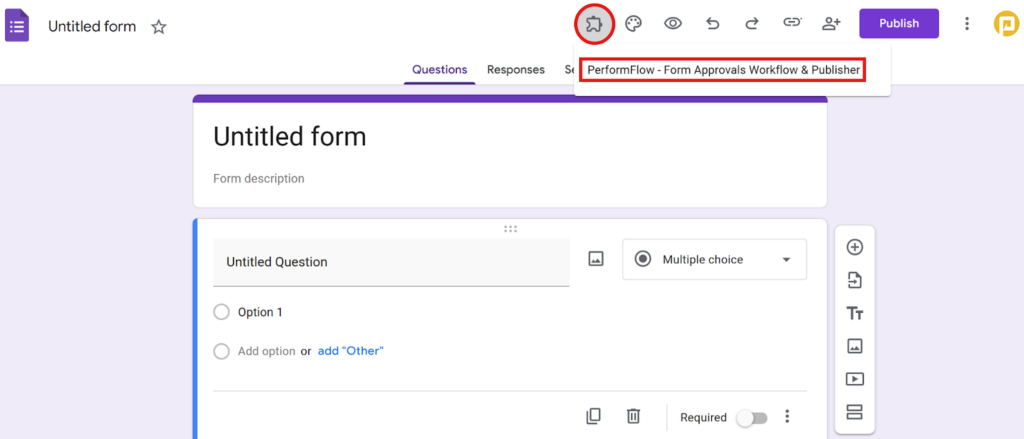
In the top-right corner of your Google Form (above the Settings gear and near the Publish button), click the Add-ons menu (the puzzle piece icon), as circled in the image below.
From the dropdown menu that appears, select: PerformFlow – Form Approvals Workflow & Publishers.
Step 3: Launch the Configuration
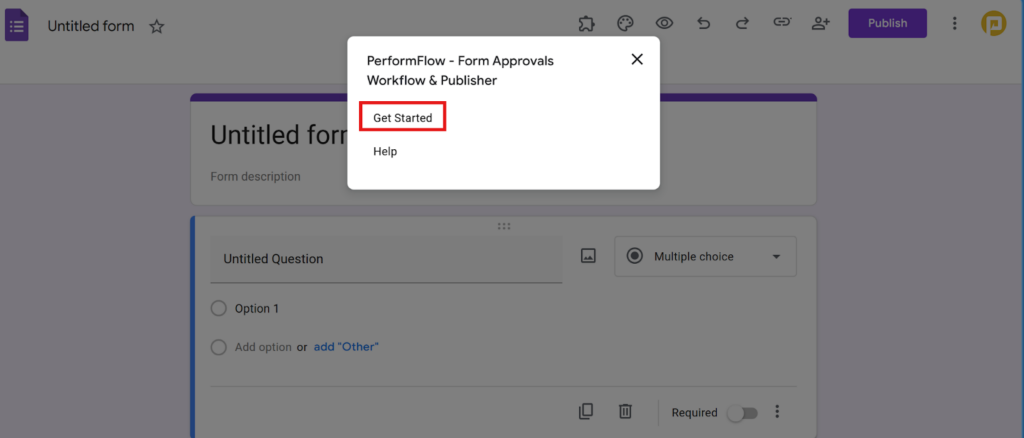
After selecting the app name, a small menu appears as shown in the image below. Click Get Started to open the PerformFlow settings sidebar directly within your Google Form.
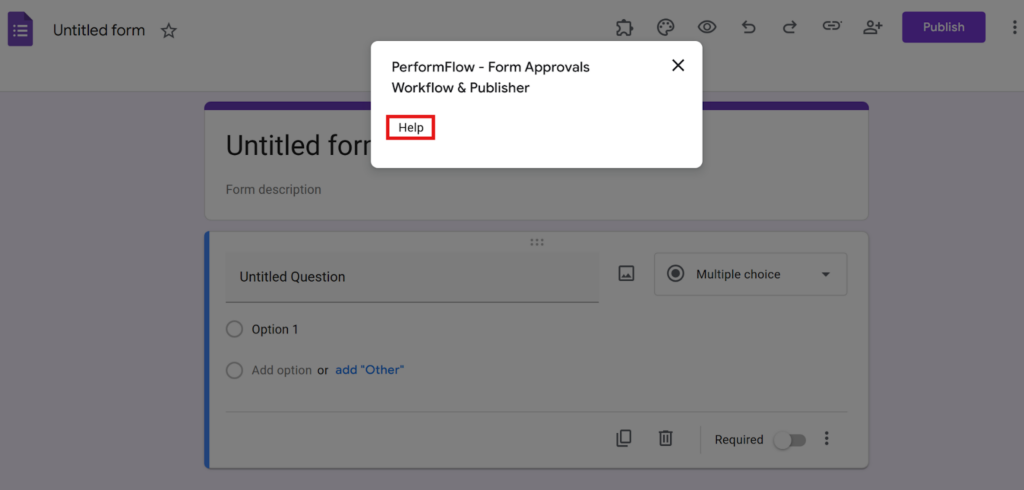
If only the Help button appears (as shown below), please close and reopen the add-on. You may need to repeat this until the Get Started button becomes visible.
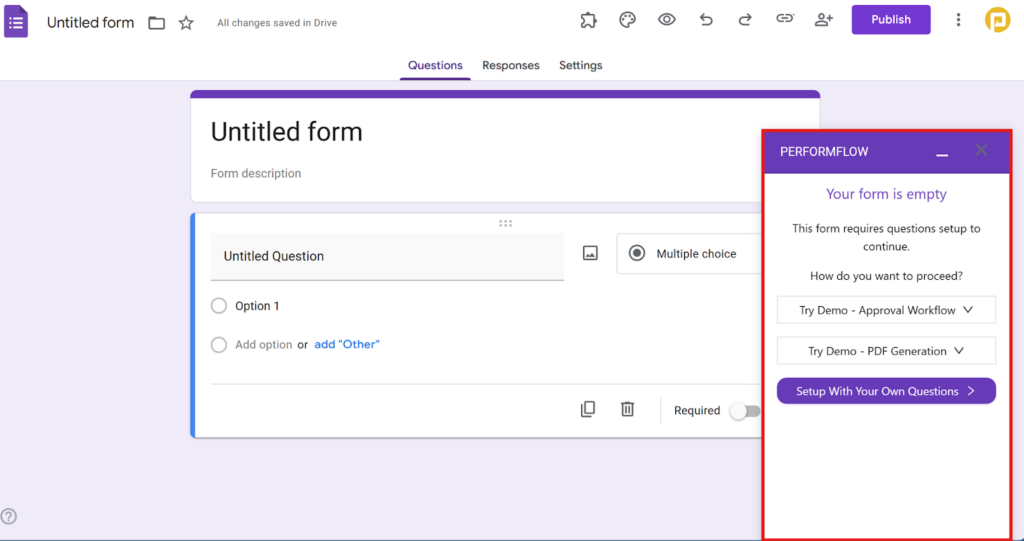
Once the add-on is open, you can begin the configuration process.
💡 Quick Tips
- Don’t see the Puzzle Piece? Refresh your browser page. Sometimes Google Forms needs a quick “nudge” to show newly installed add-ons.
- First Time Setup: If this is your first time opening it, Google may ask for one final permission to “Allow” the add-on to run on that specific form.