
We’ve introduced four new updates in PerformFlow to help you manage submissions and approvals more easily.
1. Import & Export Workflow Settings
Setting up the same approval workflow across multiple forms just got much easier!
You can now export your workflow configuration and import it into another form with just a few clicks. No more manually recreating recipients, approval levels, notifications, and workflow settings every time.
Whether you are setting up a new form or copying a successful process across accounts, you can now:
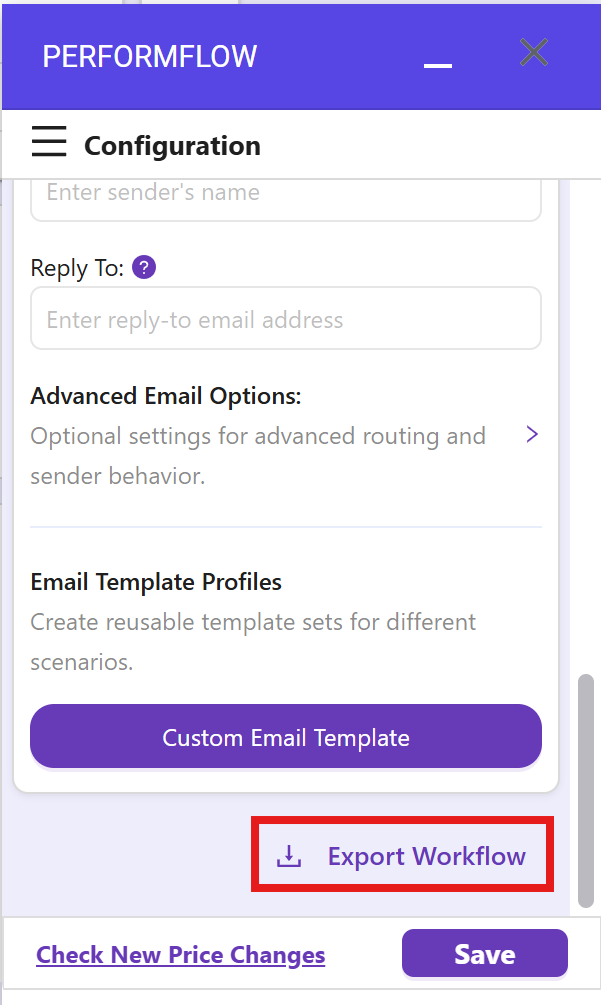
- Export Workflow: Scroll to the bottom of your workflow settings and click Export Workflow to download your configuration file.
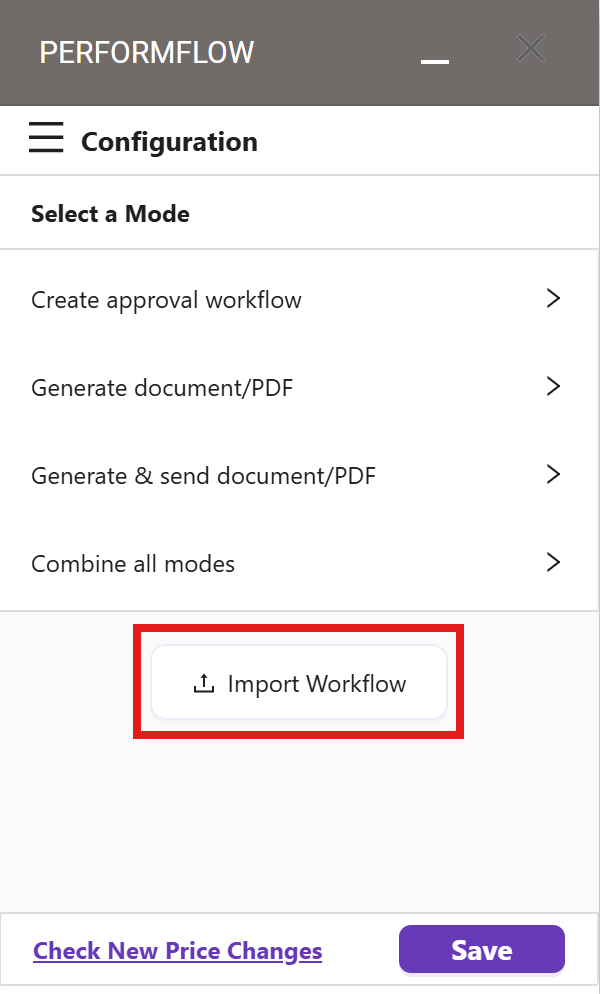
- Import Workflow: On the “Select a Mode” screen, click Import Workflow, upload your file, and hit confirm to apply your settings instantly.
Try it out today and streamline your workflow setup process!
2. Build Visual Workflow
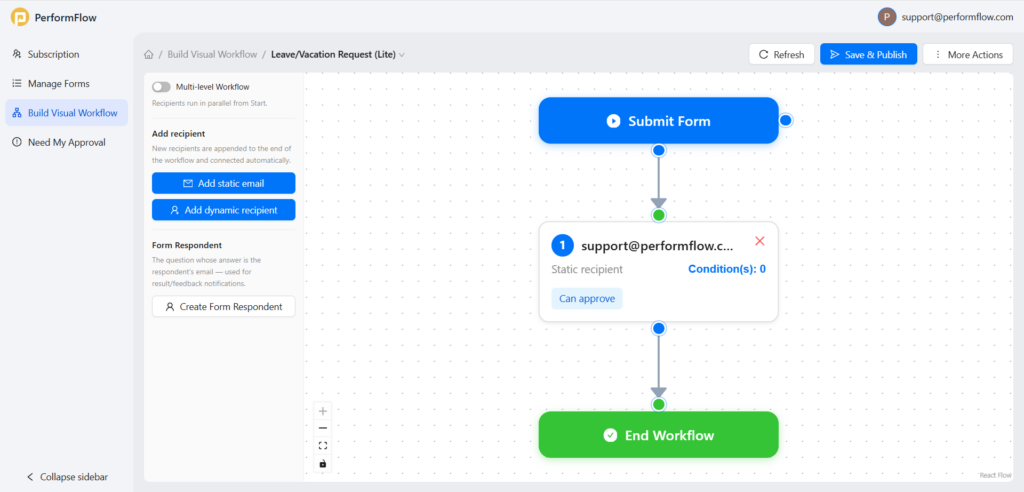
You can now create and manage your approval workflow visually directly from the PerformFlow dashboard: Build Visual Workflow, without needing to return to your Google Form.
-
Visual Diagramming: View your entire process from form submission to completion as a connected, easy-to-understand flowchart.
-
Seamless Management: Create, update, and review your workflows in one place without needing to return to your Google Form.
-
Flexible Step Addition: Quickly add static emails for fixed recipients, dynamic recipients from form responses, or include the original form respondent in the flow.
-
Drag-and-Drop Editing: Easily rearrange steps to build multi-step approvals or click on any block to adjust roles and conditions.
-
Draft & Publish: Work at your own pace by clicking Save Draft, or go live instantly with Save & Publish.
The new visual workflow builder gives you a clearer and faster way to manage approvals, automate routing, and update workflows all in one place.
3. Failed Submission Email Alert & Retry:
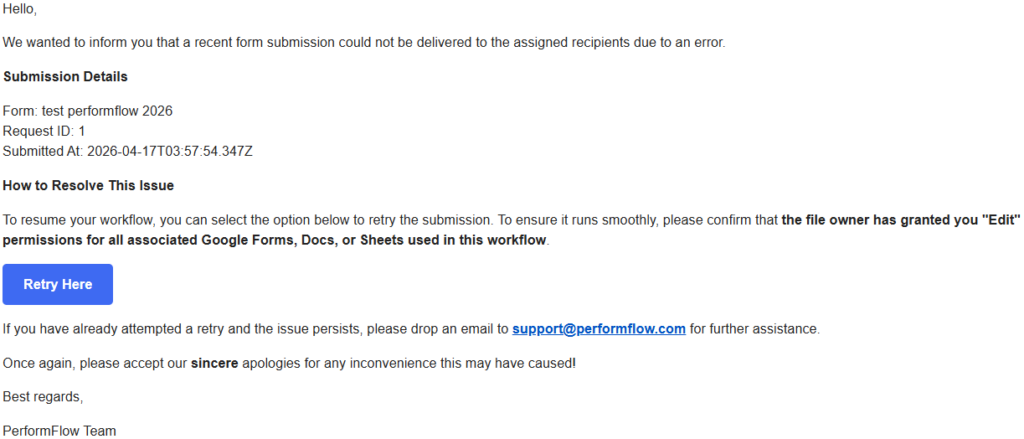 When a submission fails, you will now receive an email notification with a Retry option.
Failures can happen due to temporary system issues or because required files are missing or inaccessible. The email includes details like form name, request ID, and submission time so you can quickly identify the issue.
After fixing the problem, such as restoring access to a spreadsheet or folder, you can click Retry to process the submission again. PerformFlow will resend the request using the original setup. If something is still missing, the system will guide you on what needs to be fixed before retrying.
4. Last Approver Columns In Response Sheet
 Your response sheet will now include three new columns to track the final approval of each submission.
- Approved By shows who approved the request.
- Approver Note stores any comments from the approver.
- Approved At records the time of approval.
These columns help you clearly track approval results without leaving your spreadsheet.
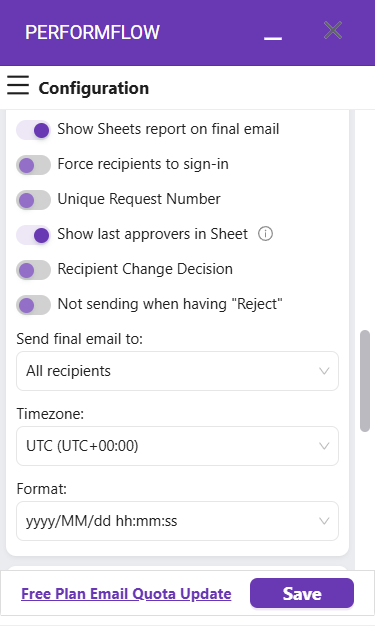
You can turn this feature on or off in Advanced Options by toggling Show last approvers in Sheet.
These updates are designed to give you better visibility and more control over your workflow.