
- User Guide
Tips to Set Up Your First Workflow
Mode 1: Create Approval Workflow Only
1.1. Add Static & Dynamic Recipients
1.3. Set Conditions for the Recipient
1.7. Add & Use Recipient Group
Mode 2 & 3: Generate & Send PDF/document only
2.1. How to generate a PDF/document
2.2. Common file template errors
2.3. Send PDF/documents to recipients
2.4. Send PDF/documents to respondents
3.1. Combine Modes – Setup File Template
3.2. Combine Modes – Add recipients
Email Settings & Features:
4.1. Change Final Email Settings to Save Quota
4.3. Show or Hide the Sheets Report in the Final Email
4.4. Show File Attachment With Recipients
4.6. Customize Email Templates
4.8. Set Conditions for Custom Email Template
4.9. Add CC and BCC Email Addresses
Team Plan:
5.2. Share Edit Permission With Team Member
Additional Features:
6.1. Set Reminders for Approval Emails
6.2. Resend All Pending Requests
6.3. Dashboard or Form Management Page
6.5. Approval Link Authentication
6.6. Transfer All Forms to Another User
6.7. Transfer Paid Plan to Another User
6.8. Avoid Automatic Approval/Rejection
6.9. Signature on Generated PDF/Google Docs in Combined Mode
6.10. Approval Status Tracking Link for Respondent
6.11. Cancel a Request via Email
6.13. Change Approval Decision for Recipients
6.15. Approve via Dashboard for Recipients
6.16. Form Owner Approves on Behalf of Recipients
6.17. Bulk Actions: Approve, Reject, and Cancel
6.18. Set Conditions for Destination Folders
Learn how to set up file template in Combine All Modes.
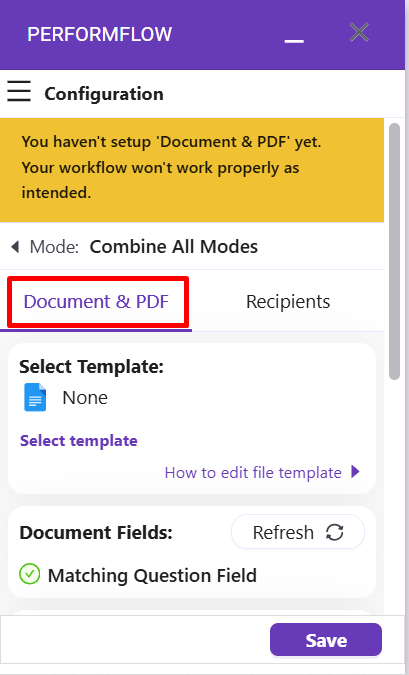
To begin, on your Configuration menu select Document & PDF tab.
In this guide, we will suppose that you already know how to make a file template (check out How to Generate Document/PDF in case you haven’t known).
Step 1: Create Google Docs file template & add it to the add-on
First, click Select template to open a Google popup where you can select your Google Docs file template.
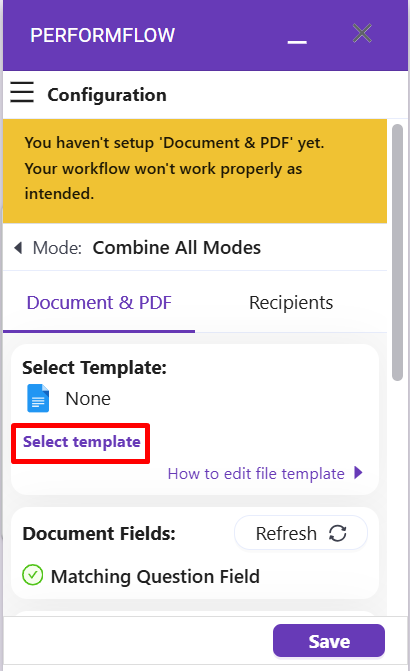
After adding file template, check out Document Fields below. If you only see green check marks, it means your file template set-up is ready.
While setting file template, you may encounter two common errors, which we highly recommend checking out our guide about common errors in setting file template and how to solve them.
Step 2: Select Destination Folder where you want to save generated files
After Step 1, scroll-down the add-on menu to the Destination Folder section.
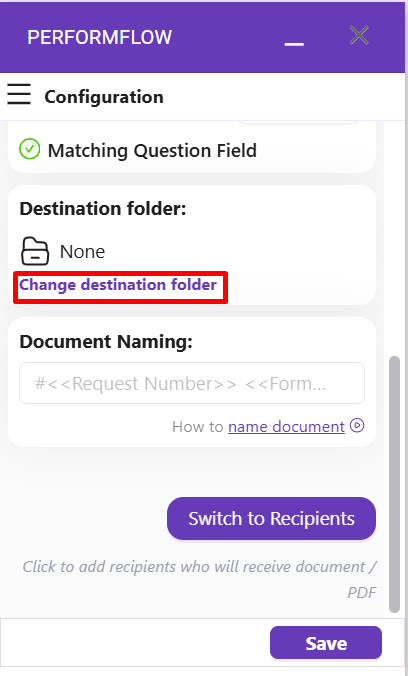
Click on “Change destination folder” to open another Google popup, which allows you to select which folder you want to save your generated files to.
Step 3: Set Naming Rule for your generated files (optional)
At the bottom of the add-on menu, you will see the final section called “Document Naming“.
This section will determine how your generated files will be automatically named.
By default, the generated files will be named as: #<<Request Number>> <<Form Name>>
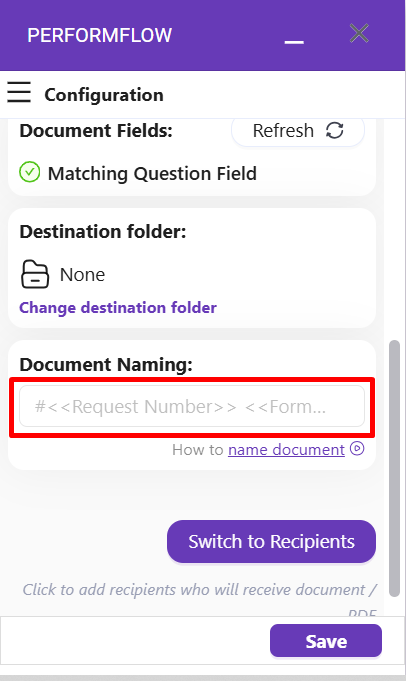
Of course, you can change the naming rule by using these three Standard Fields:
- <<Timestamp>> is the time when a particular submission is sent
- <<Request Number>> is the order number of a particular submission
- <<Form Name>> is the name of your form