
How to Import and Export Workflow

How to Access PerformFlow

Get Started

Select a Mode

Tips to Set Up Your First Workflow

Mode 1: Create Approval Workflow Only

1.1. Add Static & Dynamic Recipients

1.2. Set Multi-level Workflow

1.3. Set Conditions for the Recipient

1.4. Add Form Respondent

1.5. Request Response Edit

1.6. Check Tracking Report

1.7. Add & Use Recipient Group

Mode 2 & 3: Generate & Send PDF/document only

2.1. How to generate a PDF/document

2.2. Common file template errors

2.3. Send PDF/documents to recipients

2.4. Send PDF/documents to respondents

Mode 4: Combine All Modes

3.1. Combine Modes – Setup File Template

3.2. Combine Modes – Add recipients

Email Settings & Features:

4.1. Change Final Email Settings to Save Quota

4.3. Show or Hide the Sheets Report in the Final Email

4.4. Show File Attachment With Recipients

4.5. Resend Approval Emails

4.6. Customize Email Templates

4.7. Default Dynamic Fields

4.8. Set Conditions for Custom Email Template

4.9. Add CC and BCC Email Addresses

Team Plan:

5.1. Manage Your Team Plan

5.2. Share Edit Permission With Team Member

Additional Features: 

6.1. Set Reminders for Approval Emails

6.2. Resend All Pending Requests

6.3. Dashboard or Form Management Page

6.4. Unique Request Number

6.5. Approval Link Authentication

6.6. Transfer All Forms to Another User

6.7. Transfer Paid Plan to Another User

6.8. Avoid Automatic Approval/Rejection

6.9. Signature on Generated PDF/Google Docs in Combined Mode

6.10. Approval Status Tracking Link for Respondent

6.11. Cancel a Request via Email

6.12. Admin Approval Revert

6.13. Change Approval Decision for Recipients

6.14. Edit Status Label

6.15. Approve via Dashboard for Recipients

6.16. Form Owner Approves on Behalf of Recipients

6.17. Bulk Actions: Approve, Reject, and Cancel

6.18. Set Conditions for Destination Folders

6.19. Build Visual Workflow

6.20. How to Import and Export Workflow

Quotas & Billing

7.1. Refund Policy

7.2. Cancel Subscription and Change Payment Method

This feature is designed to save you time by eliminating the need to manually reconfigure your settings when creating new forms or moving workflows between accounts.

Follow the step-by-step instructions below to get started.

How to Export a Workflow

If you want to save your current configuration to use it elsewhere, you can easily export it:

Step 1: Go to Settings

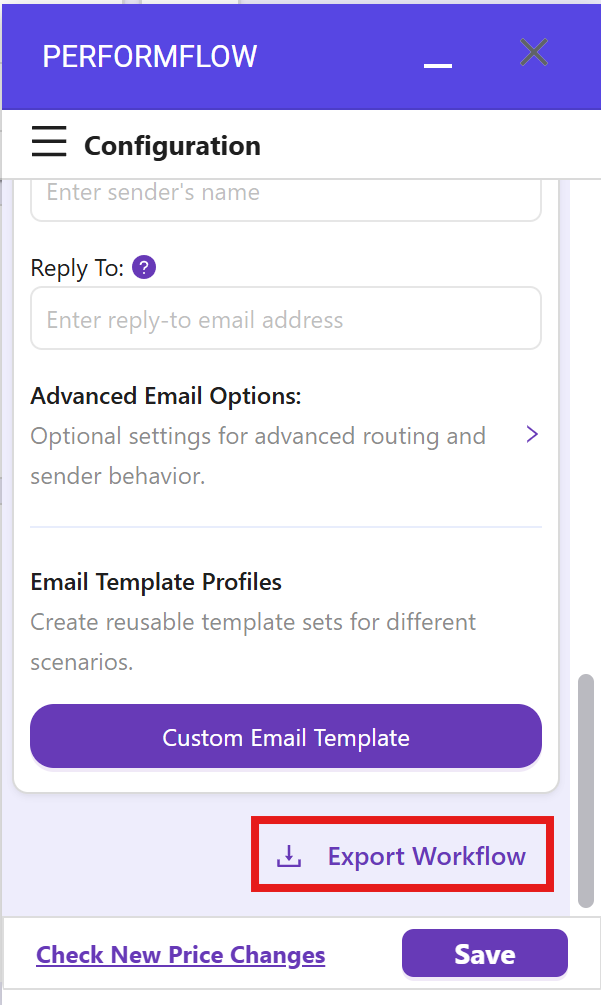
Open your add-on configuration and scroll to the bottom of the settings panel.

Step 2: Export the File

At the very end of the settings, you will find the Export Workflow function. Simply click the Export Workflow button, and the add-on will automatically download the workflow settings file directly to your device.
How to Import a Workflow

If you have an existing workflow configuration file and want to apply it to a new form, follow these steps:

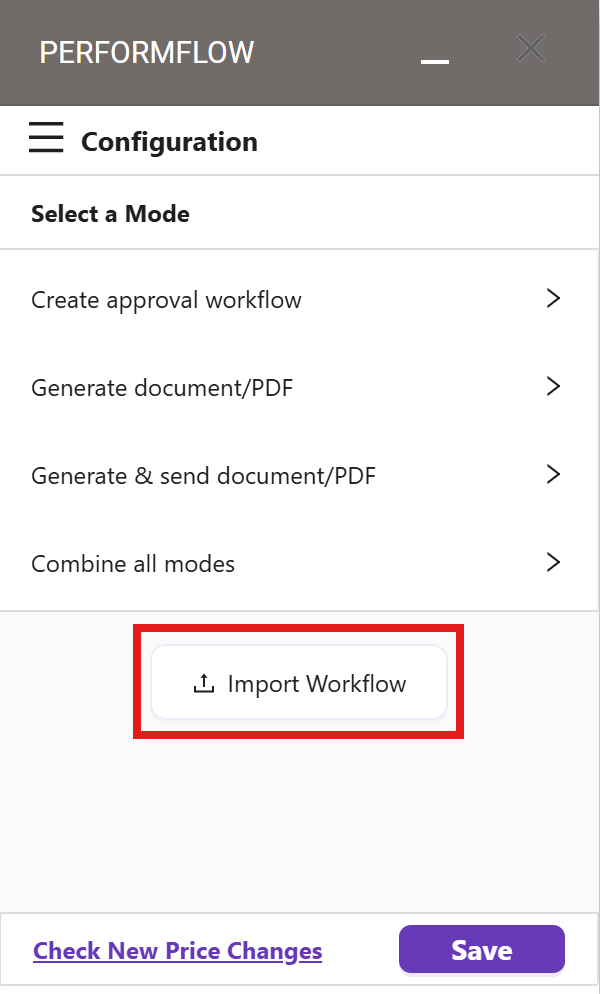
Step 1: Click the Import Button

On the initial Select a Mode screen, you will see the Import Workflow button (as circled in the image below). Simply click on it to proceed.
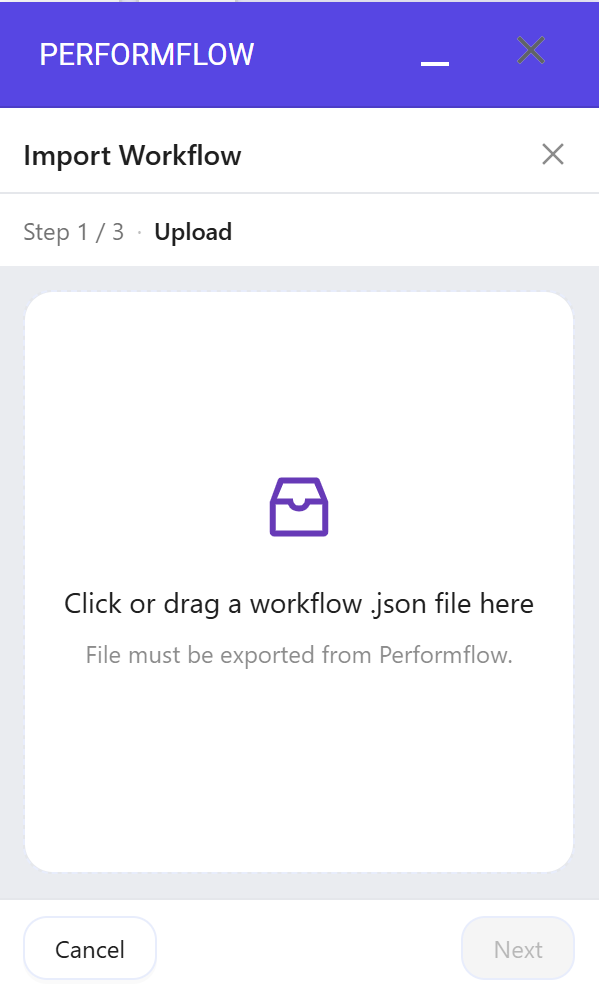
Step 2: Upload Your Configuration File

You will then be navigated to the next screen, which prompts you to upload your workflow file. Select the configuration file you previously exported from another workflow setup.
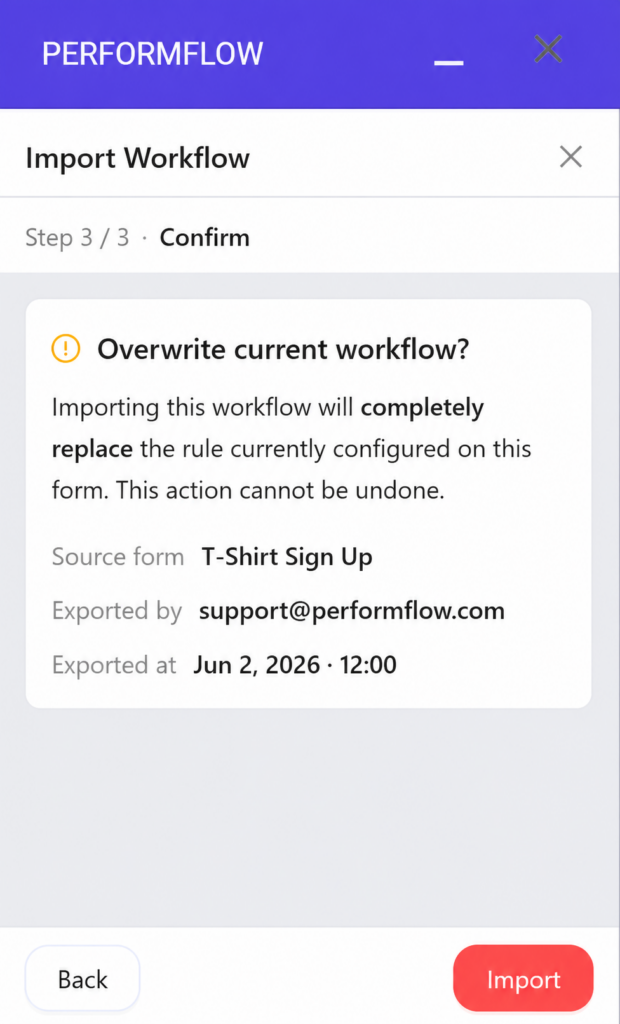
Step 3: Confirm and Finalize

After choosing the file, a confirmation screen will appear. Simply click the Import button to finalize the process and load your settings.
If you have any questions or need assistance with exporting or importing your workflows, please feel free to reach out to our support team!

Comments are closed.