
- User Guide
Tips to Set Up Your First Workflow
Mode 1: Create Approval Workflow Only
1.1. Add Static & Dynamic Recipients
1.3. Set Conditions for the Recipient
1.7. Add & Use Recipient Group
Mode 2 & 3: Generate & Send PDF/document only
2.1. How to generate a PDF/document
2.2. Common file template errors
2.3. Send PDF/documents to recipients
2.4. Send PDF/documents to respondents
3.1. Combine Modes – Setup File Template
3.2. Combine Modes – Add recipients
Email Settings & Features:
4.1. Change Final Email Settings to Save Quota
4.3. Show or Hide the Sheets Report in the Final Email
4.4. Show File Attachment With Recipients
4.6. Customize Email Templates
4.8. Set Conditions for Custom Email Template
4.9. Add CC and BCC Email Addresses
Team Plan:
5.2. Share Edit Permission With Team Member
Additional Features:
6.1. Set Reminders for Approval Emails
6.2. Resend All Pending Requests
6.3. Dashboard or Form Management Page
6.5. Approval Link Authentication
6.6. Transfer All Forms to Another User
6.7. Transfer Paid Plan to Another User
6.8. Avoid Automatic Approval/Rejection
6.9. Signature on Generated PDF/Google Docs in Combined Mode
6.10. Approval Status Tracking Link for Respondent
6.11. Cancel a Request via Email
6.13. Change Approval Decision for Recipients
6.15. Approve via Dashboard for Recipients
6.16. Form Owner Approves on Behalf of Recipients
6.17. Bulk Actions: Approve, Reject, and Cancel
6.18. Set Conditions for Destination Folders
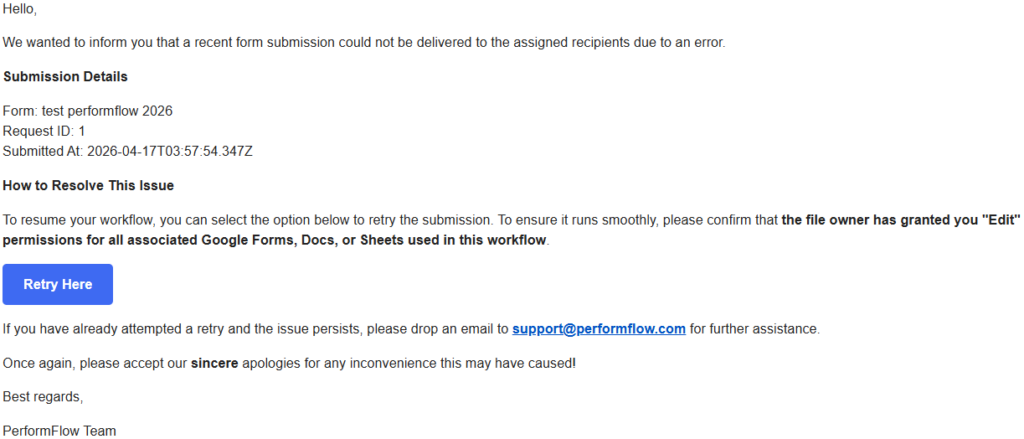
When a submission fails in PerformFlow, the system will notify you by email and provide an option to retry once the issue is resolved. This guide explains why failures happen and how to successfully retry a submission.
Understanding Submission Failures
A submission may fail when the system is unable to deliver the request to its intended destination. This can happen due to a temporary system interruption at the time of submission or because required resources are not accessible. Common cases include missing or deleted spreadsheets, templates, or destination folders, as well as insufficient permissions to access those files.
Submission Details In The Notification
Each failure notification includes key information to help you identify the issue. This includes the form name, request ID, and the exact time the submission was made. These details allow you to trace and verify the affected request in your workflow.
How To Fix The Issue
If the failure is caused by a temporary system issue, you can simply wait a short time and try again. If the issue is related to permissions, you need to make sure you have Edit access to all required files, such as spreadsheets, templates, or folders. If your access has been removed, contact the file owner and request the necessary permissions before retrying.
How The Retry Feature Works
The Retry button in the email allows you to reprocess the failed submission. When you click Retry, PerformFlow will attempt to send the submission again using the original configuration.
If the issue has not yet been resolved, the system will guide you with instructions on what needs to be fixed. After correcting the issue, you can retry. Once all requirements are properly set up, the submission will be processed successfully.
After Retrying
Once the retry is completed, you can review and manage the submission directly in your dashboard. This helps you confirm whether the submission has been delivered and processed as expected.
When To Contact Support
If the submission continues to fail after verifying permissions and retrying, you should reach out to the support team for further assistance. Provide the form ID and request numbers so the issue can be investigated quickly.